eBay Best Offer: How to Set Auto-Accept and Auto-Decline Without Losing Money
Best Offer can help items sell, or quietly cost you money. Work out your floor price first, then set your auto-accept and auto-decline limits with confidence.
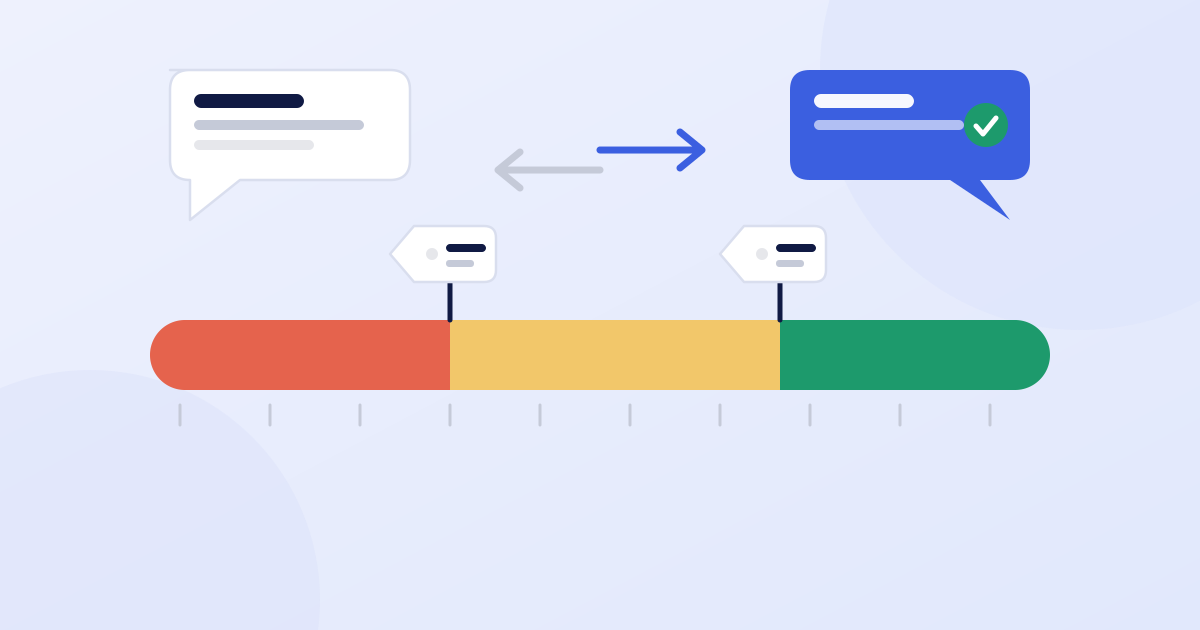
Best Offer lets buyers propose their own price. Used well, it brings in buyers who wouldn't pay your list price and helps items sell faster. Used carelessly, it means answering a stream of lowball offers, or accepting one that leaves you with nothing.
The fix is to do the math before you list, so every offer that arrives has an answer you've already decided on.
How the automatic limits work
When you turn on Best Offer, eBay lets you set two automatic rules:
- Auto-accept: offers at or above this amount are accepted immediately.
- Auto-decline: offers below this amount are declined without you lifting a finger.
Everything between the two lands in your inbox, where you can accept, decline or send a counteroffer. Offers expire after a short window, so check eBay's current timing and respond promptly.
Step 1: find your floor price
Your floor is the lowest sale price you'd be happy with. Work it out from your costs:
Floor = (what you paid + shipping + packaging + the per-order fee + the profit you want) ÷ (1 − the fee rate)
Suppose you paid $12, shipping and packaging cost $8, you offer free shipping, and you want at least $10 profit. With a 13.6% fee rate and the $0.40 per-order fee:
- Break-even: ($12 + $8 + $0.40) ÷ 0.864 = $23.61
- Floor with a $10 profit: ($12 + $8 + $0.40 + $10) ÷ 0.864 = $35.19
The fee calculator does this in one step. Use its "price for your target profit" box.
Step 2: choose your list price
Look at what the item actually sells for (sold listings). Say the typical sold price is $45. With Best Offer on, list a little above that, around 10% higher, so there's room to negotiate and still land near the market price. Here that's $49.99.
Step 3: set the limits
| Setting | Amount | Your profit at that price |
|---|---|---|
| List price | $49.99 | $22.79 |
| Auto-accept at or above | $44.00 | $17.62 |
| Auto-decline below | $36.00 | $10.70 |
(Profit is after fees, your $12 cost, and $8 shipping and packaging.)
- Auto-decline at $36, a little above your $35.19 floor. Nothing below it can reach you.
- Auto-accept at $44, around the typical sold price. A buyer who offers market price gets a quick yes, and you get a quick sale.
- Between $36 and $44, you decide. A reasonable counter is somewhere in the upper part of that range, which tells the buyer you'll move a little but not to the floor.
Step 4: counter on purpose
When an offer lands in the middle, don't default to accepting or declining. A counter keeps the conversation going and often closes at a better price than the buyer's first number. Decide your counter before you look at the offer, from your floor and your target, not from how the offer makes you feel.
When not to use Best Offer
- Low-profit items. If the whole sale only nets $5 to $8, there's no room to negotiate. Price it fairly and leave Best Offer off.
- Items that are already priced at the market. If you listed at the going rate, discounts come straight out of your profit.
- Scarce items with strong demand. If buyers are competing for them, you don't need to negotiate.
Common mistakes
- Setting the floor from the item cost alone and forgetting shipping and fees
- Listing too high, so nobody makes an offer at all
- Setting auto-accept so low that every offer gets accepted
- Never setting an auto-decline, then spending hours on lowballs
- Forgetting that fees are charged on the final price, not the list price
Keep reading
How to Price eBay Items Using Sold Listings (Step by Step)
Active listings show what sellers hope for. Sold listings show what buyers actually paid. Here's how to use them to price quickly without leaving money on the table.
eBay Shipping for Resellers: Calculated, Flat Rate or Free Shipping?
How you charge for shipping changes what buyers see and what you keep. Here's the math behind calculated, flat-rate and free shipping, and how to find your real cost.
How to Sell Clothing on eBay: Measurements, Tags and Photos That Prevent Returns
Size tags lie. Measurements don't. A practical guide to reading tags, measuring garments, photographing wear and writing clothing listings that don't come back.